
How it works
Choose your audio
Tap Trim Music on the home screen and choose an audio file from the app or Files. You can also open trimming from the audio library's more menu.
Select and preview
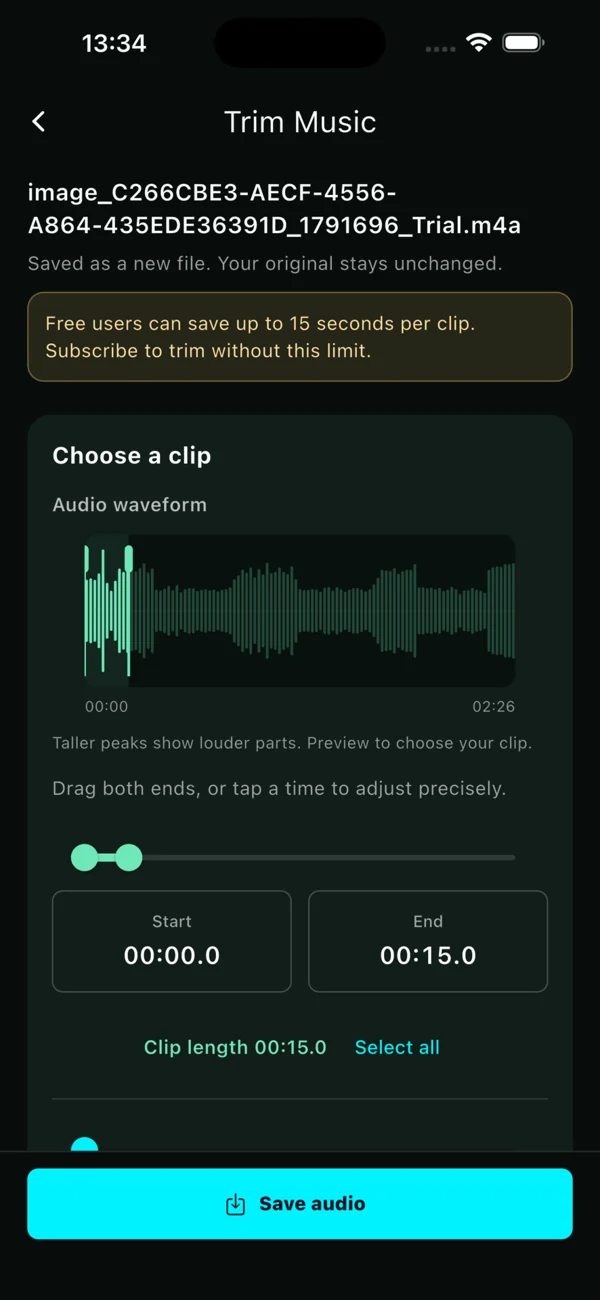
Drag the waveform handles or range controls to choose a section. Enter exact start and end times when needed, then preview the selected clip before saving.
Pick a format and save
Export a new M4A or MP3 file. Your original stays unchanged, and the new clip can be played in the app or exported with the system share sheet.
What does the waveform show?
The waveform shows the relative loudness of your actual audio. Taller peaks generally represent louder sections. Selection and playback highlights help you find a musical entrance, an interview passage, or a sound worth keeping. It is generated in the background so you can continue previewing while it loads.
What are the free and Pro limits?
Free users can save clips up to 15 seconds at a time. This limit applies to range handles, time entry, and final saving. An active Pro subscription removes the 15-second clip limit. Clip length still depends on the source duration, device performance, and available storage.
Should I choose M4A or MP3?
- M4A uses AAC for edited exports and works well on common mobile devices.
- MP3 is useful for workflows or devices that specifically need the MP3 format.
- Both edited formats are re-encoded. This is a different process from copying a video's original audio track.
Will trimming overwrite the original?
No. Each clip is saved as a new file and the original is retained. Duplicate names receive a separate file name, making it easier to compare clips. Sharing and deleting files remain actions you control.